User guide
What every screen does, and how to set it up so the teams come out fair every week. Ten minutes to read; you only set things up once.
Get the app
Even Strength is coming soon to Google Play for Android phones and to the App Store for iPhone. Once it's live, the buttons on the home page will take you straight to it.
- Open Google Play (Android) or the App Store (iPhone) and search for Even Strength, or tap the store button on this site.
- Install it and open it. There's no account to create and nothing to sign in to.
- The app opens on the Roster screen with a sample roster of 27 players already filled in (22 Regulars and 5 Spares). Use it to try things out, then replace it with your own players (Build your roster and Import from Google Sheets).
Only the organiser needs the app. Players get the teams however you share them: a text, an image, a PDF or a printed sheet.
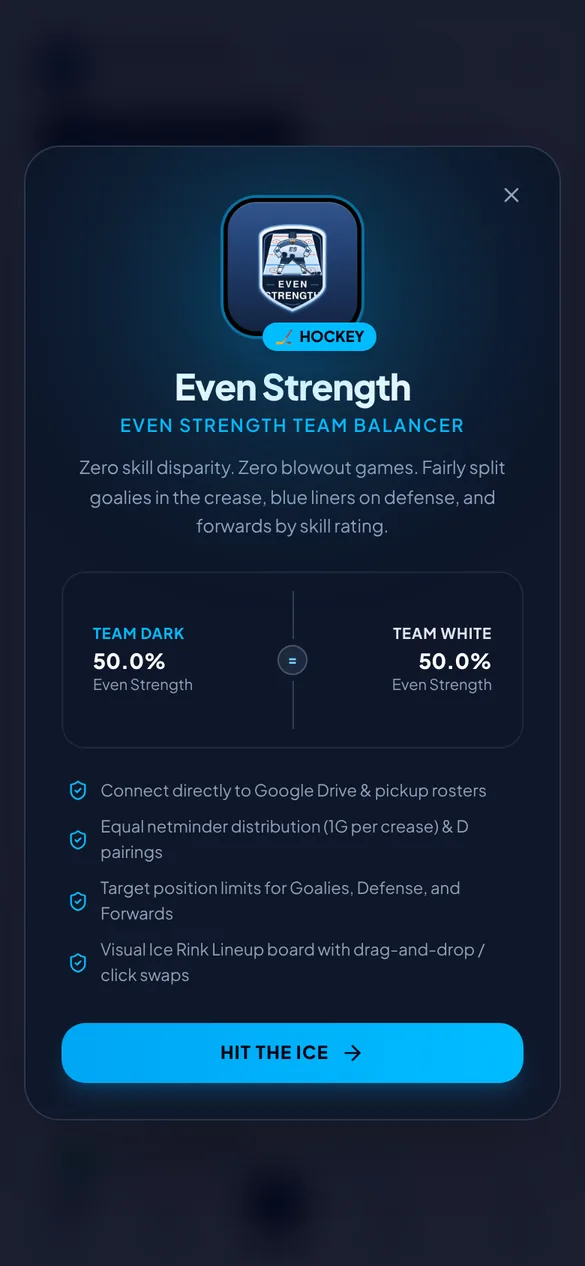
A quick tour
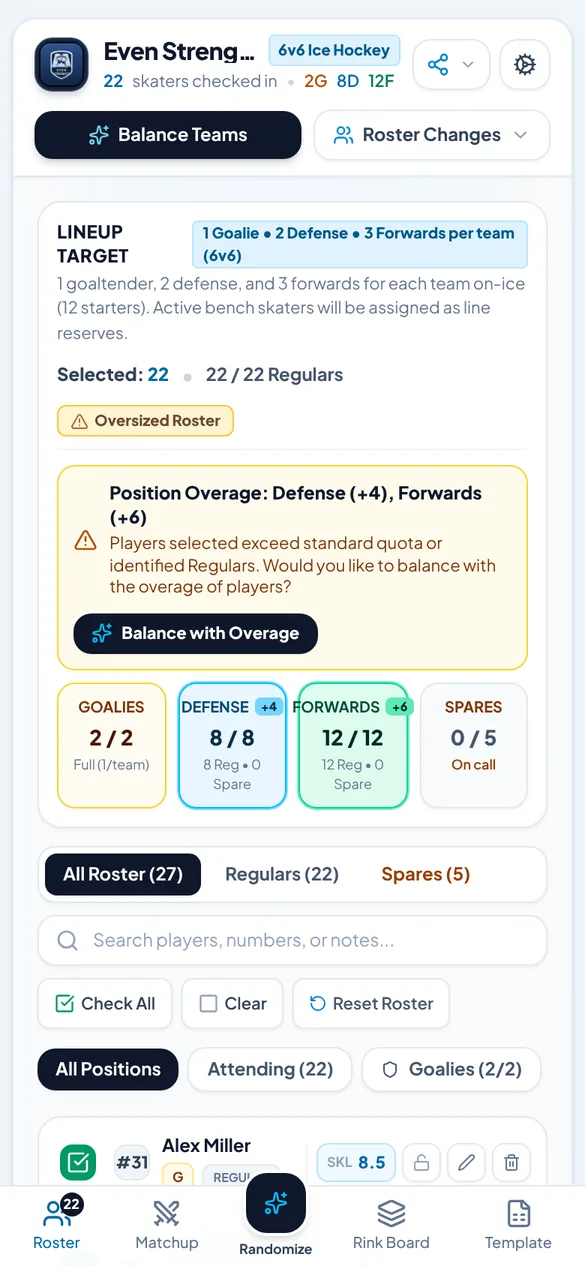
Everything happens on one screen, with a header at the top and five buttons along the bottom.
The bottom bar
| Button | What it's for |
|---|---|
| Roster | Your players and tonight's check-in. The badge shows how many are checked in. |
| Matchup | The two teams side by side, with the balance rating. A green dot means teams are ready. |
| Randomize | The big centre button. It makes new balanced teams from whoever is checked in. |
| Rink Board | The teams on an ice surface, or as a game-sheet lineup card. |
| Template | A ready-made roster spreadsheet you can copy into Google Sheets. |
The header
- The subtitle counts tonight's players, e.g. 22 skaters checked in • 2G 8D 12F.
- Share (the share icon) sends the lineup as text, image, PDF or print (Share the lineup).
- Settings (the cog) holds the lineup rules, team names and colours (Set your lineup rules).
- Balance Teams makes the teams. Roster Changes is where you add a player or import a roster.
Set your lineup rules
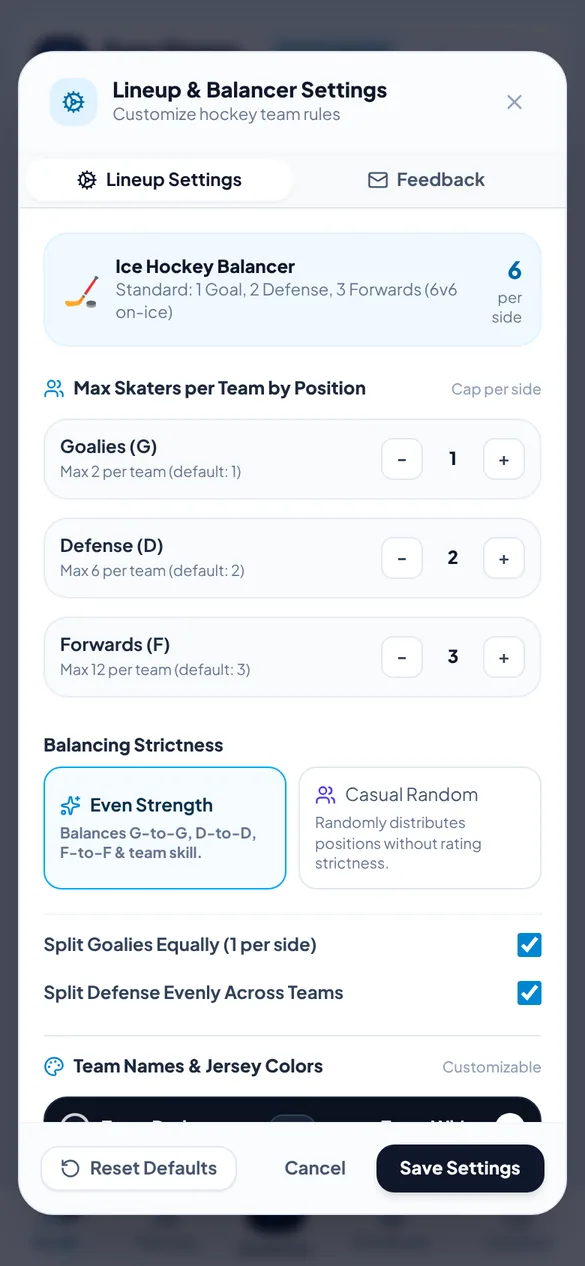
Tell the app how many of each position play per side, how strictly to balance, and what the teams are called. Do this first, because it changes how every team is built.
- Tap the Settings cog at the top right. The Lineup Settings tab opens.
- Under Max Skaters per Team by Position, use − and + to set how many goalies, defense and forwards each team ices. The total "per side" updates as you go.
- Choose a Balancing Strictness (see below).
- Under Team Names & Jersey Colors, type the two team names and tap a jersey colour for each, or tap a preset.
- Tap Save Settings. Teams that are already made are renamed and recoloured straight away.
| Position | Default per team | Allowed |
|---|---|---|
| Goalies (G) | 1 | 0–2 |
| Defense (D) | 2 | 0–6 |
| Forwards (F) | 3 | 0–12 |
The defaults are a standard 6 v 6: one goalie, two defense and three forwards per side. Anyone over those numbers goes to the bench unless you choose to play everyone (Balance the teams).
Balancing strictness
- Even Strength (recommended): balances goalie against goalie, D against D, F against F, and the total skill of each team.
- Casual Random: still splits each position evenly, but ignores skill ratings. Good for a laid-back skate. The main button then reads Randomize Teams.
Jersey colours
Presets: Dark vs White, Red vs Blue, Navy vs Gold, Green vs White. You can also choose any of these for either team:
- Dark / Black
- White
- Red
- Royal Blue
- Navy Blue
- Forest Green
- Teal
- Gold / Yellow
- Orange
- Purple
- Burgundy / Maroon
- Gray / Silver
Reset Defaults puts everything back to 6 v 6, Even Strength, Team Dark vs Team White.
Build your roster
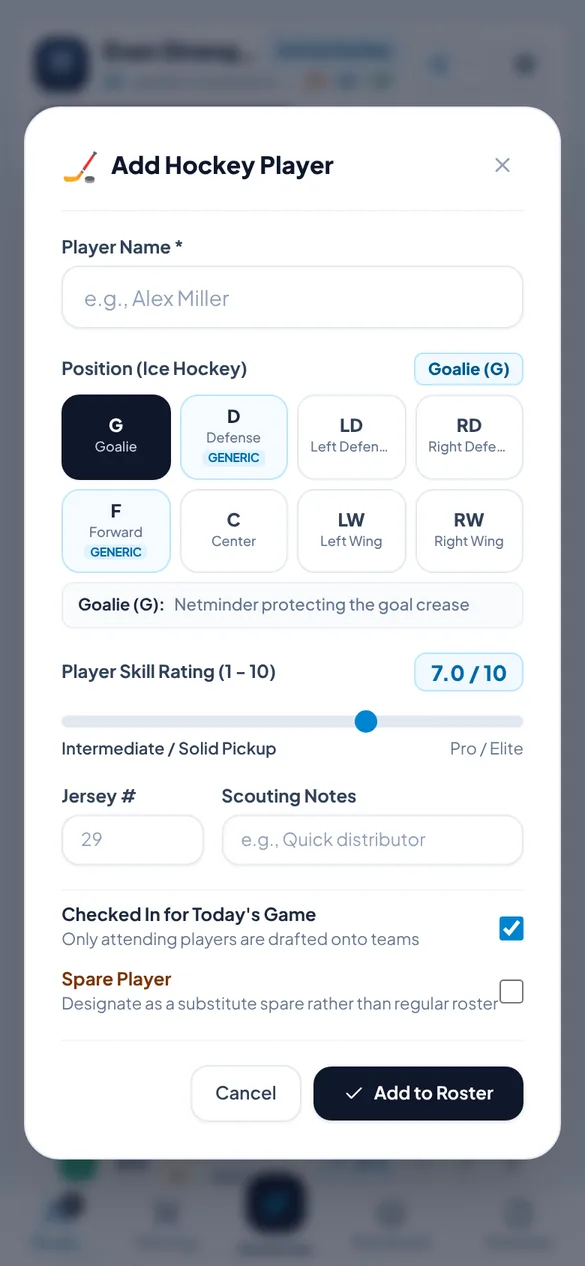
Add each player once. From then on you only tick who's playing. To bring a whole list in at once, skip to Import from Google Sheets.
Add a player
- Tap Roster Changes, then Add Player.
- Type the Player Name (the only required field).
- Tap their Position (see the table below).
- Slide the Player Skill Rating from 1 to 10. The label underneath tells you what each level means.
- Add a Jersey # and Scouting Notes if you like (e.g. "great passer", "plays both wings").
- Leave Checked In for Today's Game ticked if they're playing tonight. Tick Spare Player if they're a substitute rather than a Regular.
- Tap Add to Roster.
Positions
| Code | Position | Balanced as |
|---|---|---|
| G | Goalie | Goalies |
| D · LD · RD | Defense, Left Defense, Right Defense | Defense |
| F · C · LW · RW | Forward, Center, Left Wing, Right Wing | Forwards |
Skill ratings
Ratings go from 1 to 10 in half steps. Be consistent rather than precise: what matters is how players compare with each other.
| Rating | Label in the app |
|---|---|
| 9 – 10 | Elite / Semi-Pro / Top Tier |
| 8 – 8.5 | Advanced / Upper Tier Rec |
| 6.5 – 7.5 | Intermediate / Solid Pickup |
| 4.5 – 6 | Lower Rec / Novice |
| 1 – 4 | Beginner / First Year |
Regulars and Spares
Regulars are your usual group. Spares are subs you call in when someone can't make it. Spares only play when you check them in. Tap a player's REGULAR / SPARE badge to switch them.
Edit or remove a player
Each row has a lock (Swap & lock players), a pencil to edit and a bin to delete.
Delete and Reset Roster act straight away. The bin removes the player with no "are you sure?". Reset Roster replaces your whole roster with the sample players. Keep a copy of your roster in a Google Sheet so you can always re-import it.
Import from Google Sheets or CSV
If your roster lives in a spreadsheet, bring it all in at once. Start from the app's template so the columns match.
Step 1: Make your sheet from the template
- Tap Template in the bottom bar.
- Choose Standard Pickup Roster (22 players + spares, as an example) or Blank Starter (12 empty rows).
- Tap Copy for Google Sheets, then Create Google Sheet. Click cell A1 in the new sheet and paste (Ctrl + V). Or tap Download .CSV to keep it as a file.
- Replace the example rows with your players.
| Column | Heading | What to enter |
|---|---|---|
| A | Name | Player's name |
| B | Position | G, LD, RD, D, C, LW, RW or F (words like "Goalie" or "Defense" work too) |
| C | Skill | 1 – 10 (letter grades such as A, B+ or C also work) |
| D | Regular/Spare | Regular or Spare |
| E | Attending | Yes or No (blank counts as Yes) |
| F | Number | Jersey number |
| G | Notes | Anything you like |
Step 2: Bring it into the app
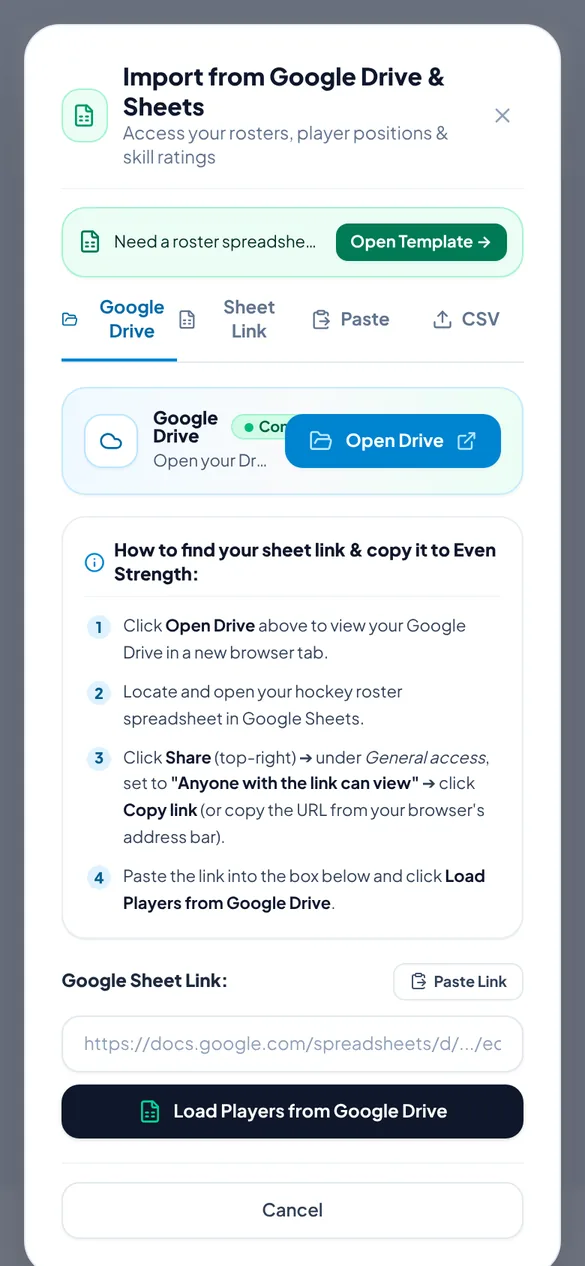
Tap Roster Changes → Import Roster, then choose one of these:
- Sheet Link or Google Drive: in Google Sheets tap Share, set General access to Anyone with the link can view and copy the link. Paste it into the app (Paste Link) and tap Load Players from Google Sheets. The app remembers the link, so next time use Use Link or Reuse / Sync on the Roster screen.
- Paste: select the rows in your sheet, copy them, paste them into the box and tap Parse Pasted Roster.
- CSV: choose a .csv (or tab-separated) file from your phone.
With Paste and CSV you see a preview first. Leave Replace current roster ticked to start fresh, or untick it to add the players to your existing roster. Then tap Apply Players to Roster.
Check the names after a link import. If the sheet isn't shared as "Anyone with the link can view", the app can't read it and loads the sample roster instead (Alex Miller, Chris Taylor…). If that happens, fix the sharing and import again, or use Paste.
Check in tonight's players
Before each game, tell the app who's actually there. Only checked-in players are put on teams.
- On the Roster screen, tap the square at the left of each player who's playing. It turns green for Regulars and amber for Spares.
- To start from scratch, tap Clear, then tick tonight's players. Check All ticks everyone, including Spares, so untick any Spares who aren't coming.
- Watch the four counters: Goalies, Defense, Forwards and Spares. They show who's in and whether a position is short or over. Tap a counter to show just those players.
- Short a position? Open the Spares tab and check in a sub who plays it.
Use the All Roster / Regulars / Spares tabs, the position chips (Attending, Goalies, Defense, Forwards) and the search box (names, numbers or notes) to find people quickly.
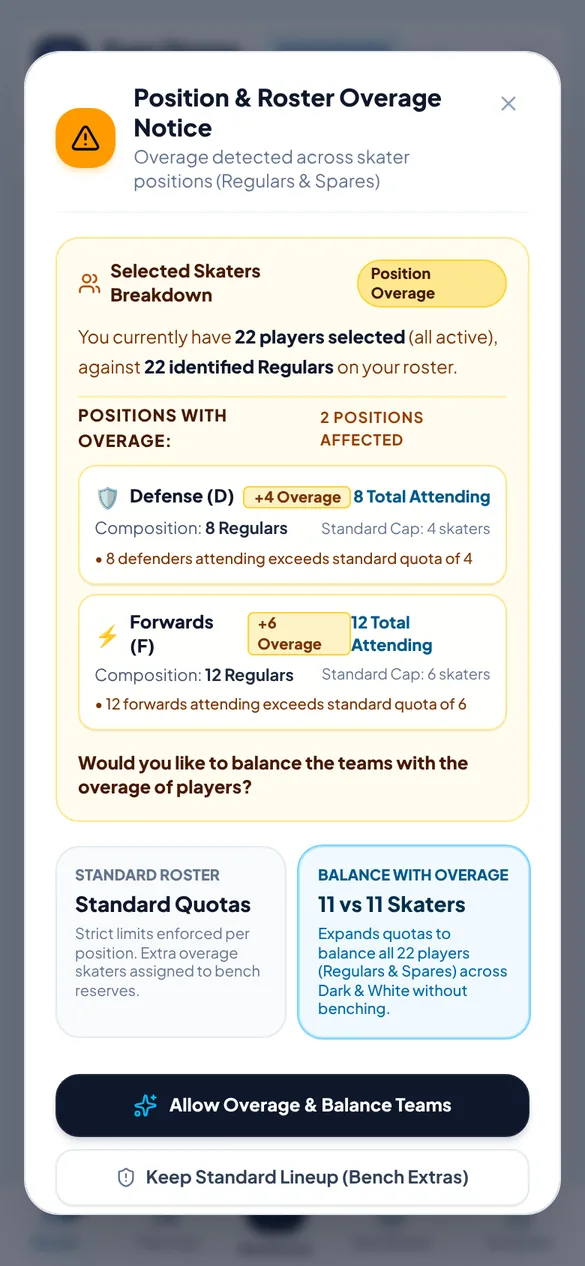
If more players are checked in than your lineup allows, or than you have Regulars, an Oversized Roster notice appears with the positions that are over. You'll choose what to do when you balance (next chapter).
Balance the teams
- Tap Balance Teams in the header, or the Randomize button in the middle of the bottom bar. You need at least two players checked in.
- If there's an overage, the Roster Overage Notice explains it and asks how to proceed:
- Allow Overage & Balance Teams: everyone plays, spread fairly across both sides.
- Keep Standard Lineup (Bench Extras): keeps your per-position limits. The extras sit out this split.
- Cancel and Adjust Attendance: go back and change who's checked in.
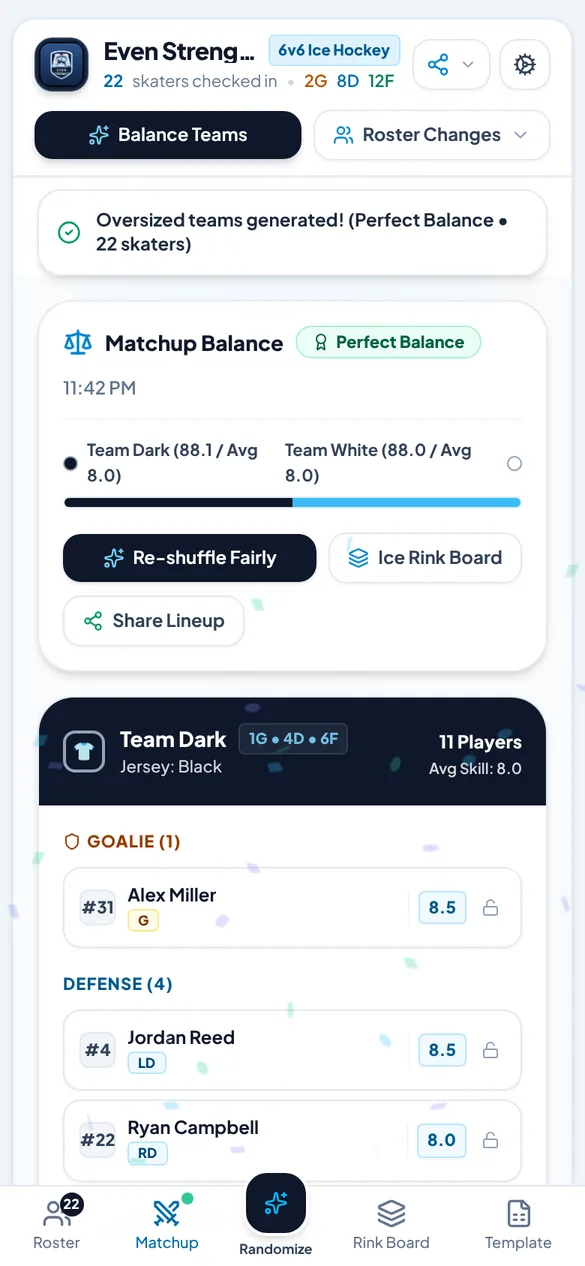
- The app switches to Matchup (with a little confetti) and shows both teams, each team's total and average skill, and the balance rating.
- Want a different but still fair split? Tap Re-shuffle Fairly. Each re-shuffle picks another of the fairest combinations.
What the balance rating means
| Rating | Meaning |
|---|---|
| Perfect | Total skill within about a point, with goalies and defense closely matched. |
| Great | Within about 1.5 points. A very close game. |
| Good | Within about 2.5 points. Fair, but re-shuffle if you want it tighter. |
| Fair | A bigger gap, usually caused by who showed up (e.g. two very strong goalies of different levels). Try a swap. |
Swap & lock players
Swap two players
- On Matchup (or the Rink Board), tap a player. The app shows "Selected … Click any player or spare to swap them!"
- Tap the player to trade them with. They change places and the balance rating updates.
- Changed your mind? Tap Cancel before the second tap.
Swaps aren't limited to the same position. You could trade a goalie for a forward, so swap like for like to keep the lineup sensible.
Lock a player to a team
Use locks for players who must be together or apart, such as a parent and child, or two goalies who always face each other.
- On the Roster screen, tap a player's lock. Each tap goes Dark → White → unlocked, and the lock shows D or W.
- On Matchup, tap the lock on a player's card to keep them on the team they're on.
- Locked players always stay on their team when you balance or re-shuffle. Everyone else is balanced around them.
Rink Board & lineup card
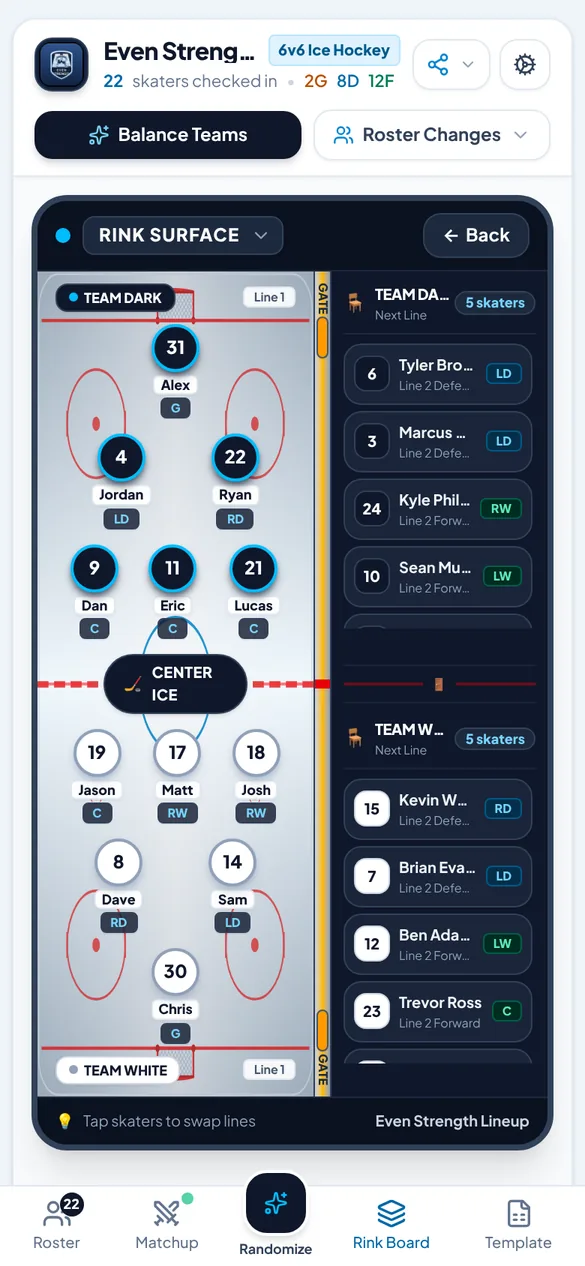
Tap Rink Board in the bottom bar (or Ice Rink Board on Matchup). The menu at the top switches between two views, and the app remembers your choice.
Rink Surface
- Both teams' starting line on the ice: G, LD, RD, LW, C and RW, in their jersey colours with numbers.
- The next line and the backup goalie wait on each team's bench.
- Tap a skater, then another (on the ice or the bench), to swap them. It's handy for setting lines.
Lineup
- A game sheet for each team: Goaltenders (start and backup), Forwards (Line 1, Line 2, Line 3 / extras) and Defense Pairings (Pair 1, Pair 2, Pair 3 / extras).
- Line 1 and Pair 1 are tagged On-ice as the starters. Empty spots show Open Slot.
- This is the card used for the image, PDF and print versions.
Share the lineup
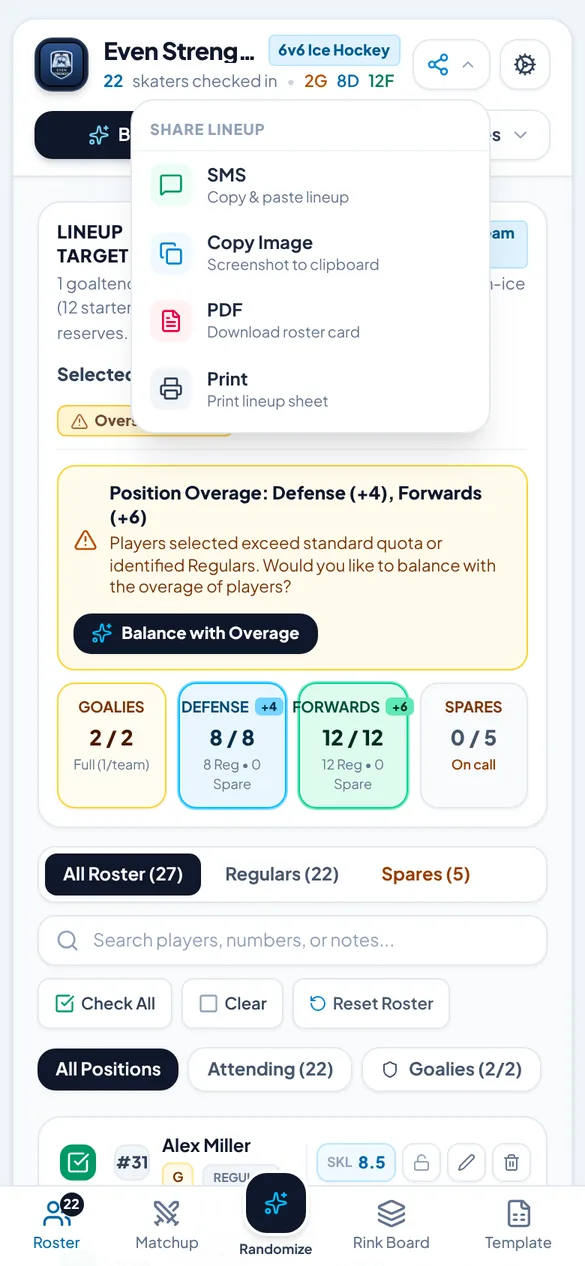
Tap the Share icon at the top. If you haven't made teams yet, the app makes them first.
| Option | What you get | Best for |
|---|---|---|
| SMS | A text lineup with lines and pairs copied to your clipboard | Paste into a text, WhatsApp or team chat |
| Copy Image | A picture of the lineup card (saved as game-lineup.png if copying isn't possible) | Group chats |
game-roster-lineup.pdf, a landscape roster card | Email, or keeping a record | |
| Just the lineup card, ready for the printer | The bench or the dressing-room door |
On the Matchup screen, Share Lineup opens a ready-to-send message. Use Copy Message to copy it, or Send to open your phone's share sheet (Messages, WhatsApp, email…).
Share after any swaps, so the lineup your players see is the one you'll actually play.
Tips & troubleshooting
For the fairest games
- Rate everyone on the same scale. Ask one or two people who know the group to agree on the ratings, and adjust them after a few weeks.
- Give each player their real position. Balancing happens within goalies, defense and forwards, so a defenseman listed as a forward throws it off.
- Check in before you balance. Late arrival? Check them in and re-shuffle, or swap them in.
- Keep your Spares marked as Spares, so they only play when you tick them.
Common questions
| If… | Try this |
|---|---|
| The Balance button is greyed out | Check in at least two players. |
| Someone's missing from both teams | They're either not checked in, or benched because your lineup was full. Raise the per-position limits in Settings, or choose Allow Overage. |
| One team keeps winning | Look at the balance rating and the skill totals. Re-shuffle, swap a player, or revisit a few ratings. |
| The import loaded "Alex Miller, Chris Taylor…" | The sheet wasn't public. Set it to Anyone with the link can view and import again, or use Paste. |
| Two players must be on the same team | Lock both to Dark or both to White on the Roster screen. |
| Copy Image didn't paste | Some phones can't copy pictures; the app saves game-lineup.png instead, so share that file. |
Your data
Your roster, settings and teams are saved on your phone. There's no account, and your roster isn't uploaded anywhere. Uninstalling the app or clearing its data removes them, so keep your roster in a Google Sheet as a backup. More in the privacy policy.
Questions or ideas? Email app@beyondtherink.org.
↑ Back to top